Fake Icons: The Clever Way to Hide Sensitive Content on Your Phon
Why I Started Messing with Fake Icons on My Phone
Okay, so fake icons? Yeah, they’re my new obsession for hiding sensitive content on my phone. Picture this: I’m at a coffee shop in downtown Seattle, rain pattering on the window, my latte’s gone cold, and my buddy grabs my phone to “check something.” My heart legit stops because, well, I’ve got stuff on there—photos, notes, apps—that’s nobody’s business. Like, seriously, I once had a super embarrassing note about a bad date that I did not need my friend seeing. That’s when I realized I needed to get sneaky with fake icons to keep my private stuff, well, private.
I’m no tech genius, trust me. I’m just a dude in my 30s, fumbling through life in the U.S., trying to keep my phone from spilling my secrets. I learned about fake icons from a random Reddit thread (shoutout to r/LifeProTips), and it’s been a game-changer. It’s like putting a decoy safe in your house, except it’s a calculator app hiding your spicy photos. Anyway, let’s dive into how this whole fake icons thing works.
What Are Fake Icons, and Why Are They My Go-To for Phone Privacy?
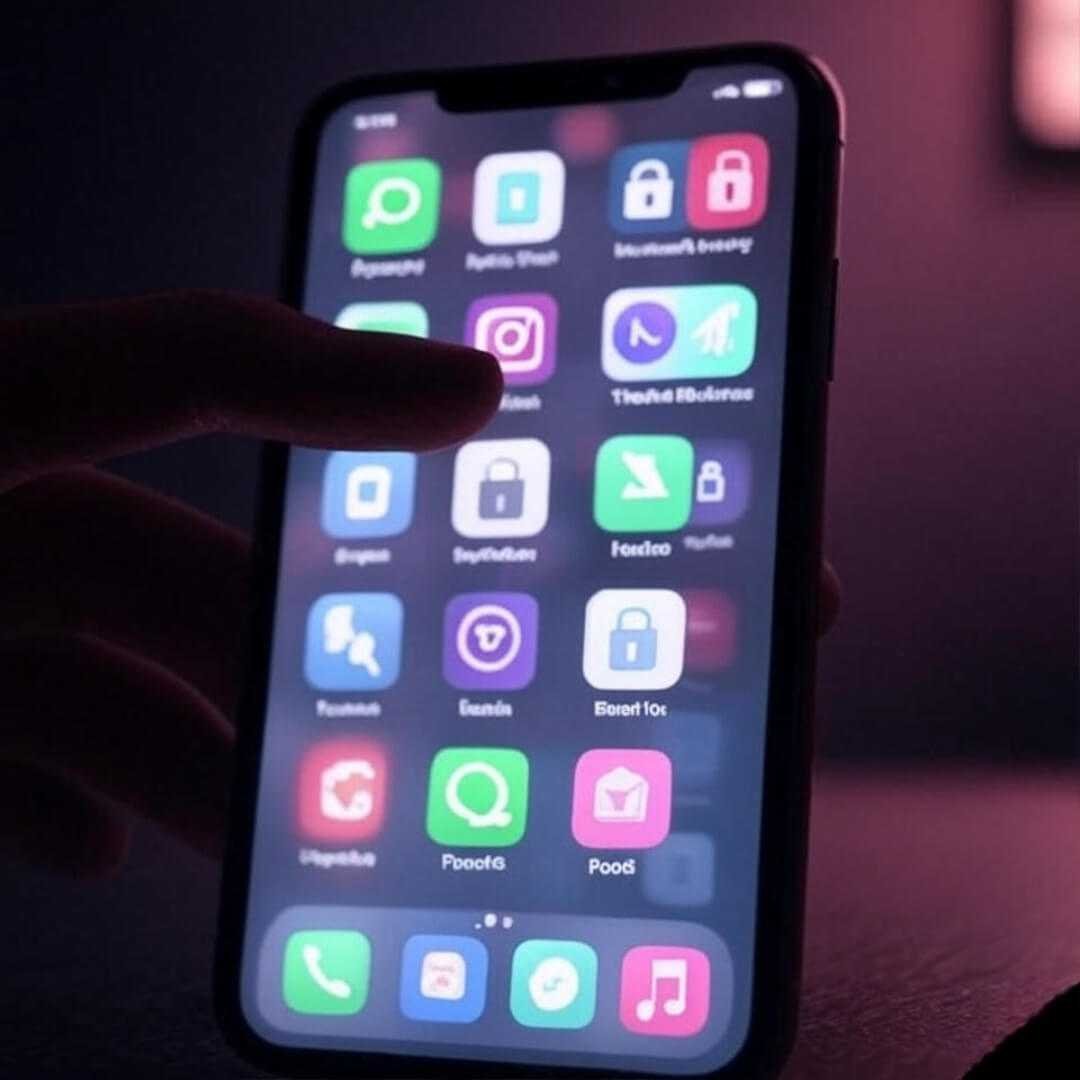
Fake icons are basically apps or folders disguised as something boring—like a weather app or a to-do list—that actually hide your sensitive content. Think of it like a secret trapdoor in a video game, except it’s your phone, and the treasure is your private stuff. I’ve got this one app that looks like a dull fitness tracker but opens to a locked folder with my, uh, “personal” files. I found this trick on TechRadar, and it’s stupidly simple but brilliant.
Here’s why I’m obsessed:
- Nosy people get bored fast. My sister once swiped my phone to “look at photos,” but she didn’t suspect the fake calculator app. Score!
- It’s low-effort. I’m lazy, okay? Fake icons don’t need me to be a coding wizard.
- Feels like I’m in a spy movie. Hiding sensitive content this way is kinda fun, like I’m James Bond, but with worse hair and a chipped phone screen.

My Messy Journey to Mastering Fake Icons
Alright, full disclosure: I screwed this up at first. I downloaded some shady app from a sketchy site (don’t do that, check CNET’s guide on safe downloads), and my phone started acting like it was possessed—pop-ups everywhere. Lesson learned: stick to legit apps like Secure Folder or Hide It Pro. Anyway, I was in my cramped apartment, blinds half-open, streetlights flickering outside, when I finally figured it out. I spent a whole evening messing with my phone, cursing under my breath, trying to make a folder look like a boring stock app.
Here’s what worked for me:
- Pick a boring disguise. I chose a calculator icon because, like, who’s gonna open that? Nobody.
- Use built-in features first. On my Samsung, there’s a Secure Folder option (check Samsung’s official guide). iPhones have hidden album options too.
- Test it out. I legit asked my roommate to “find my secret stuff” to see if my fake icons held up. Spoiler: he failed.
The first time I showed off my hidden apps to a friend, I felt so smug, like I’d cracked some CIA code. But then I forgot my passcode to the hidden folder and panicked for, like, two hours. Typical me.
H3: Fake Icons Saved My Butt at a Party
True story: I was at a house party in Portland last month, music blasting, Solo cups everywhere, and someone grabbed my phone to DJ. My stomach dropped because I had some, uh, private messages in an app I didn’t want anyone seeing. Thank God for my fake icons setup—a “Weather” app that’s actually a locked vault. Nobody suspected a thing, and I played it cool, sipping my drink, pretending I wasn’t sweating bullets. That’s the magic of hiding sensitive content with fake icons—it’s like a safety net for your dumb decisions.

Tips for Setting Up Fake Icons Without Losing Your Mind
I’m no expert, but I’ve fumbled my way through this, so here’s my advice for hiding sensitive content with fake icons:
- Choose apps wisely. Apps like Locker or Keepsafe are solid (I read reviews on PCMag). Avoid random downloads from sketchy sites.
- Mix it up. Don’t just hide stuff in one app—spread it out. I’ve got fake icons for photos, notes, and even some spicy DMs.
- Don’t overcomplicate it. I tried setting up, like, three layers of fake folders once, and I confused myself. Keep it simple, dude.
- Backup your passcodes. Yeah, I learned this the hard way. Write them down somewhere safe, not on a Post-it stuck to your fridge like I did.
Also, pro tip: make your fake icon something you’d actually use. I picked a to-do list app because I’m always jotting down random stuff, so it blends in. Nobody’s gonna question it.
The Downside of Fake Icons (Yeah, I Messed Up)
Look, fake icons aren’t perfect. I once hid an app so well I forgot where it was. Took me a week to find my own stuff, and I felt like an idiot. Also, some apps eat up battery life, which sucks when you’re out all day and your phone’s at 5%. And, like, if someone really wants to snoop, they might figure it out—fake icons aren’t Fort Knox. Still, for casual nosy folks, they do the trick.

Why Fake Icons Make Me Feel Like a Sneaky Genius
There’s something so satisfying about outsmarting people with fake icons. It’s like, yeah, my phone’s a mess, my life’s a mess, but I’ve got this one thing locked down. Hiding sensitive content this way gives me peace of mind, especially when I’m out in public, like waiting for a bus in the chilly Seattle rain, knowing my private stuff is safe. I’m not saying I’ve got state secrets on my phone, but, like, my bad poetry and awkward selfies deserve some protection, you know?
If you’re curious about other privacy tricks, I stumbled across this dope article on Wired that’s got more tips. But for me, fake icons are the MVP of phone privacy.
Conclusion: Try Fake Icons, Save Your Secrets
Alright, I’m wrapping this up because my coffee’s cold again, and I’m getting distracted by the barista yelling orders. Fake icons are my go-to for hiding sensitive content, and yeah, I’ve fumbled my way through learning them, but they’ve saved my butt more than once. If you’re like me—kinda paranoid, a little clumsy with tech—give them a shot. You’ll feel like a sneaky genius, I promise. Got any fake icon stories of your own? Drop them in the comments or, like, DM me. I’m nosy too, okay.